
Yes, QuickBooks can do job costing. You need to enable Projects in QuickBooks Online or create a Customer:Job in Desktop, then standardize your cost categories before you enter a single transaction. Do that first, and you can track labor, materials, and overhead by job, then run real profitability reports instead of guessing which projects actually make money.
TL;DR:
- Proper setup requires standardizing your cost categories to ensure accurate job costing and prevent irrelevant or inconsistent reports over time.
- Using estimated hourly labor rates with a fully-burdened calculation provides quicker visibility into job labor costs without sacrificing long-term accuracy.
- Assigning bills line by line and applying overhead rates based on total costs ensures precise cost allocation and avoids overestimating profitability.
- Weekly review of key reports like Project Profitability and Job Cost Detail helps identify cost overruns and margin declines early for timely corrective action.
- Maintaining fixed cost groups, automating data flow, and updating overhead rates quarterly are essential practices for sustained accuracy and meaningful insights.
Table of Contents
- How to Set Up Job Costing in QuickBooks the Right Way
- How Should You Capture Labor Costs for Job Costing?
- How Do You Assign Bills and Overhead to a Job?
- Which QuickBooks Reports Actually Tell You If a Job Is Profitable?
- What Keeps a Job Costing System Accurate Over Time?
- What Should the First 60 Days of a Job Costing Rollout Look Like?
- Why Job Costing Matters More Than the Software Itself
- Get Your QuickBooks Job Costing Set Up Right the First Time
- Sources
How to Set Up Job Costing in QuickBooks the Right Way
Job costing in QuickBooks Online lives inside Projects. Turn it on under Settings, then Account and Settings, then Advanced, and flip the “Organize job activity by project” toggle. Every job then gets its own container for income, costs, time, and estimates. QuickBooks Desktop works differently: there’s no Projects module, so you build a Customer:Job for each job under the Customer Center, and every expense, bill, or invoice needs that job attached before it counts toward job costing reports. QuickBooks Desktop’s own guidance is blunt about this: skip the assignment step and the job cost report comes back empty.
Once tracking is on, build your cost structure before you touch a bill. Here’s the setup sequence that keeps a job costing quickbooks online system clean for years, not just for the first month:
- Group your costs into a short list. Five categories cover almost every contracting business: Labor, Materials, Equipment, Subcontractor, and Overhead. QuickBooks recommends grouping costs this way specifically because it keeps budget versus actual comparisons readable across every job, instead of a different report shape for every project.
- Map those groups to your chart of accounts and item list. Each cost group should tie to specific expense accounts and specific items, so a bookkeeper entering a bill sees an obvious choice, not a guess.
- Name jobs with a consistent code. Something like “2026-047-Smith-Kitchen” beats “Smith Job” once you’re running twenty projects at once and need to sort or filter fast.
- Create job-assignable items for materials and subcontractors. Two-sided items that hit both an expense account and an income account let you track markup on materials the same way you track markup on labor.
Skipping step one is the single most common reason job costing reports come back useless six months later. Too many cost line items and nobody enters data the same way twice.
How Should You Capture Labor Costs for Job Costing?
Labor is where most job costing setups break down, because there are two legitimate ways to do it and most owners pick the wrong one for their situation.
Payroll-posted costs post actual wages to a job only after a payroll run completes. They’re accurate to the penny but they lag. If your payroll runs biweekly, you won’t see labor cost on last Tuesday’s job until ten days later.
Estimated hourly costs let you set a per-employee cost rate in QuickBooks Online Projects (covering wages plus a rough burden for taxes and benefits) so a job shows an estimated labor cost the moment a timesheet is entered. QuickBooks’s own guidance on tracking hourly labor costs frames this as the tradeoff: payroll-posted numbers for accuracy, estimated rates for speed.
Most owner-operated trades run both. Estimated rates give the field superintendent same-day visibility. Payroll-posted numbers become the record of truth once the pay period closes.
- Set an hourly cost rate per employee inside Projects, not just a pay rate in payroll.
- Collect time through QuickBooks Time, a mobile timesheet app, or paper sheets entered same-day. Waiting a week to enter time is how job costs get retroactively rewritten after a bid decision has already been made.
- Reconcile estimated versus payroll-posted labor monthly, not just at year-end.
To set the estimated rate correctly, calculate a fully-burdened hourly cost, not just base wage. Take a $25/hour wage, add a burden percentage for payroll taxes, workers’ comp, and benefits to estimate the fully-burdened hourly cost. Enter the wage rate and skip the burden, and every job report understates labor cost by a fifth or more.
Pro Tip: Build the burden percentage once as a spreadsheet formula, then update it quarterly when insurance or workers’ comp rates change. A stale burden rate quietly erodes every margin calculation you run for the rest of the year.
How Do You Assign Bills and Overhead to a Job?
Every bill, check, and credit card charge in QuickBooks has a Customer:Job or Project field at the line level, not just the header. That distinction matters: coding the whole bill to one job when it actually covers materials for three jobs will overstate one project’s cost and hide the other two.
- Enter vendor bills line by line, assigning each line to its job and cost group, splitting a single Home Depot receipt across three jobs when it covers three jobs.
- Record equipment costs by type. Rental equipment gets billed and coded directly to the job as an Equipment cost. Owned equipment needs an allocated rate (an hourly or daily internal charge) since depreciation alone won’t show up on a job cost report in real time.
- Apply an overhead rate rather than ignoring indirect costs. A common method: total annual overhead divided by total annual direct labor cost gives you a percentage to apply to every job’s labor cost. Apply an overhead rate based on the proportion of total overhead to total direct labor cost to every job’s labor cost. QuickBooks’s job costing guidance treats overhead exclusion as one of the most common reasons margins look better on paper than they actually are.
- Mark expenses billable or non-billable at entry, and track committed costs like open purchase orders separately from what’s already posted, so a report doesn’t miss money that’s already spoken for.
Pro Tip: If a subcontractor’s committed cost isn’t in QuickBooks yet, enter it as a purchase order against the job anyway. A report that only shows posted costs will look profitable right up until the invoice arrives.
Which QuickBooks Reports Actually Tell You If a Job Is Profitable?
Four reports do almost all the work: Project Profitability, Job Cost Detail, Income vs. Cost by job, and Time Cost by Employee. Run them weekly, not monthly, on active jobs.
- Project Profitability shows revenue against total cost for a job in one view. This is the report you pull before deciding whether to bid a similar job again.
- Job Cost Detail breaks that number down by cost group, so you can see whether a shrinking margin came from labor overruns, material price increases, or subcontractor change orders.
- Income vs. Cost by Job compares what’s been invoiced to what’s been spent, useful for spotting a job that’s burning cash faster than it’s billing.
- Time Cost by Employee flags whether one crew consistently runs over estimated hours across multiple jobs, which is a training or scheduling problem, not a bidding problem.
Watch for three red flags: committed costs plus posted costs exceeding budget before the job is even 80% complete, gross margin dropping more than a few points from your original estimate, and cost-to-complete estimates that keep climbing every time you check. Any one of those should trigger a conversation with the field lead that week, not at project close.
Procore’s job costing guidance makes the case directly: job costing only earns its keep when you compare actuals to estimates often enough to correct a problem job while there’s still time to fix it. A report that only gets pulled after the final invoice is a postmortem, not a management tool. Customize each report to show cost groups as columns, and export a standing weekly version for your bookkeeper or accountant so nothing gets reviewed from memory.
What Keeps a Job Costing System Accurate Over Time?
Job costing systems don’t fail at setup. They fail three months later, when someone creates a sixth cost group because the first five didn’t quite fit, and now nobody codes bills the same way twice.
- Keep cost groups fixed at five to eight categories. Miter’s guidance on cost codes and integration points out that manual, disconnected time and payroll entry is where most job cost errors originate, not the accounting software itself.
- Automate the flow from field time tracking into QuickBooks wherever you can with the right boekhoudsoftware voor wervingsbureaus. A synced app beats a stack of paper timesheets that get entered every other Friday.
- Review and update your overhead allocation rate quarterly, not annually. Insurance premiums and fuel costs move faster than a once-a-year rate review can catch.
- Set a standing weekly or biweekly review of every active job, tracking committed costs (open POs, pending change orders) right alongside posted costs.
Pro Tip: Assign one person, not a rotating cast, as the sole approver for job cost coding on bills. Split responsibility is how the same expense gets coded two different ways in the same month.
What Should the First 60 Days of a Job Costing Rollout Look Like?
A clean job costing setup follows a sequence, and skipping steps to get to reports faster is how most rollouts stall.
- Run a QuickBooks cleanup first. Duplicate items, orphaned accounts, and inconsistent vendor records will corrupt job cost reports before you’ve entered a single new transaction. Our QuickBooks cleanup checklist covers the sixteen steps we run on every new engagement.
- Design your cost groups and map them to the chart of accounts and item list.
- Integrate time capture so field hours flow in daily, not on a two-week lag.
- Map payroll expense accounts to cost groups so labor posts correctly after every run.
- Run baseline reports on two or three active jobs and reconcile committed costs before trusting the numbers on a new bid.
This sequence works especially well for HVAC, plumbing, electrical, general contracting, and trucking operations, where margin visibility by job (or by route, or by truck) usually reveals more pricing problems than any single rate increase would fix. Our contractor bookkeeping and job costing guide walks through the full setup for service businesses running multiple jobs at once.
Why Job Costing Matters More Than the Software Itself
Most advice on job costing in QuickBooks treats the software as the answer. It isn’t. QuickBooks is a filing system; the discipline that makes it useful is deciding, once, exactly how every dollar gets coded, and then holding that line for every invoice, every bill, and every timesheet that follows.
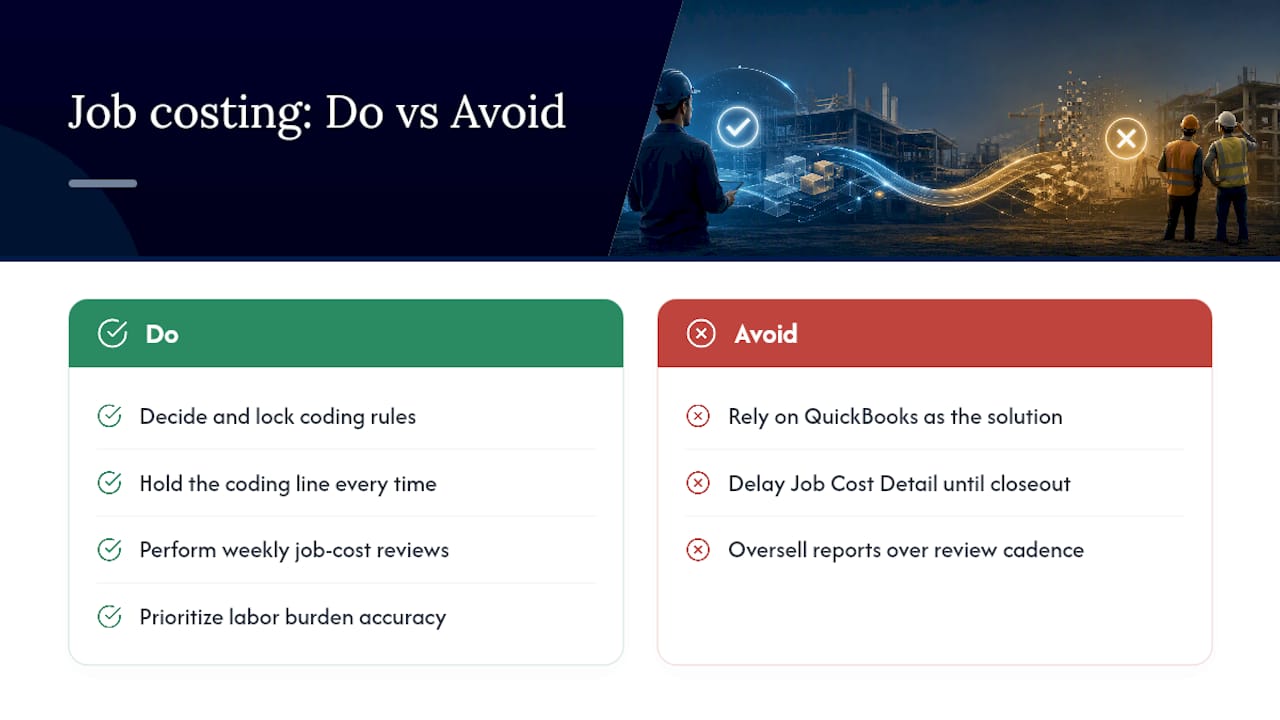
The conventional advice oversells reporting and undersells the review cadence. A perfectly configured chart of cost groups is worthless if nobody looks at the Job Cost Detail report until the project is already closed out. The owners who get real value from job costing are the ones who treat the weekly review as non-negotiable, the same way they’d treat payroll.
If you take one thing from this, prioritize labor burden accuracy before anything else. An unburdened labor rate quietly inflates every margin on every job, and it’s the single easiest number to get wrong and the hardest one to notice until a bid season goes badly.
— Tony
Get Your QuickBooks Job Costing Set Up Right the First Time
Setting this up correctly takes real hours, and most owner-operators are already working sixty of them a week running the business itself. Job costing systems for contractors, HVAC and plumbing companies, electrical contractors, and trucking operations are a core part of bookkeeping and fractional CFO work, not an add-on nobody follows up on.
A typical engagement starts with a QuickBooks cleanup, moves into cost group design and payroll mapping, and ends with weekly job profitability reports you can actually read in five minutes. That’s the difference between a QuickBooks file that technically has “job costing turned on” and one that actually tells you which jobs to bid again. If you’re ready to see what your current jobs are really earning, start with our bookkeeping services for small businesses and request a QuickBooks cleanup quote.
Sources
- Track job costs in QuickBooks Desktop | QuickBooks
- The Ultimate Guide to Construction Job Costing | Miter