
Start with three moves: take a backup snapshot of your QuickBooks file right now, run a quick diagnostic to count unreconciled months and uncategorized transactions, then set a closing date with a password to lock prior periods. Those three steps alone prevent the most common cleanup disasters. Following that foundation, Intuit’s 12-step bookkeeping cleanup workflow and their downloadable cleanup checklist PDF give you a proven template to work from. Here is the priority sequence every service business owner or bookkeeper should follow:
- Take a full file backup or QBO export
- Run the diagnostic (unreconciled months, uncategorized transaction count, Undeposited Funds balance)
- Set a closing date and password in QuickBooks settings
- Rebuild the Chart of Accounts (COA)
- Reconcile bank and credit-card accounts, oldest month first
- Clear uncategorized and miscategorized transactions
- Review and clean accounts receivable (AR) and accounts payable (AP)
- Reconcile payroll liabilities and verify payroll tax filings
- Adjust inventory and update the fixed-asset register
- Run QuickBooks diagnostics (Verify/Rebuild for Desktop, audit log for QBO)
- Perform a final quality-control (QC) review
- Set up monthly maintenance controls to prevent regression
Pro Tip: Set the closing date and password before touching a single transaction. Clients who can still edit prior periods will undo your work without realizing it, and you will spend hours reconciling changes that should never have happened.
Key Takeaways
A QuickBooks cleanup done in the right sequence, starting with a backup and diagnostic before touching any transactions, prevents rework and produces financial data you can actually use to run your business.
| Point | Details |
|---|---|
| Backup and diagnostic first | Take a file snapshot and run diagnostic reports before changing any transaction. |
| Fix the COA before reclassifying | Merging and cleaning accounts before batch categorization prevents doing the same work twice. |
| Reconcile oldest month first | Working forward from the oldest unreconciled period catches errors before they compound. |
| Payroll liabilities need CPA review | Uncleared payroll liabilities carry IRS risk and should not be zeroed out with journal entries alone. |
| Truemeasureaccounting offers fixed-fee cleanup | Scoped diagnostic, prioritized fix list, and reconciled reports for service businesses nationwide. |
This article is general information, not a substitute for advice from a qualified financial advisor. Consult a qualified financial professional about your own circumstances before acting on anything here.
Table of Contents
- How do you run a quick pre-cleanup audit in QuickBooks?
- Gather supporting records and create a safe backup first
- Step-by-step bank and credit-card reconciliation process
- How do you clean up the Chart of Accounts and fix transaction categories?
- Reviewing and cleaning accounts receivable and accounts payable
- How do you resolve payroll entries and payroll liabilities in QuickBooks?
- Inventory adjustments and fixed-asset tracking
- Which QuickBooks tools and diagnostics speed up cleanup safely?
- How long does a QuickBooks cleanup take, and what does it cost?
- A practical monthly close checklist to keep QuickBooks clean
- Most common cleanup mistakes and how to avoid them
- When should you hire a QuickBooks cleanup professional?
- Why cleanup is a strategic decision, not just a compliance task
- Truemeasureaccounting’s fixed-fee QuickBooks cleanup service
- Sources
How do you run a quick pre-cleanup audit in QuickBooks?
Before you fix anything, spend 20–30 minutes pulling a handful of reports. This scoping step tells you how deep the problem goes and where to focus first.
Reports and counts to pull:
- Unreconciled months: Open the Reconciliation History report. Count how many months have never been reconciled or show a discrepancy.
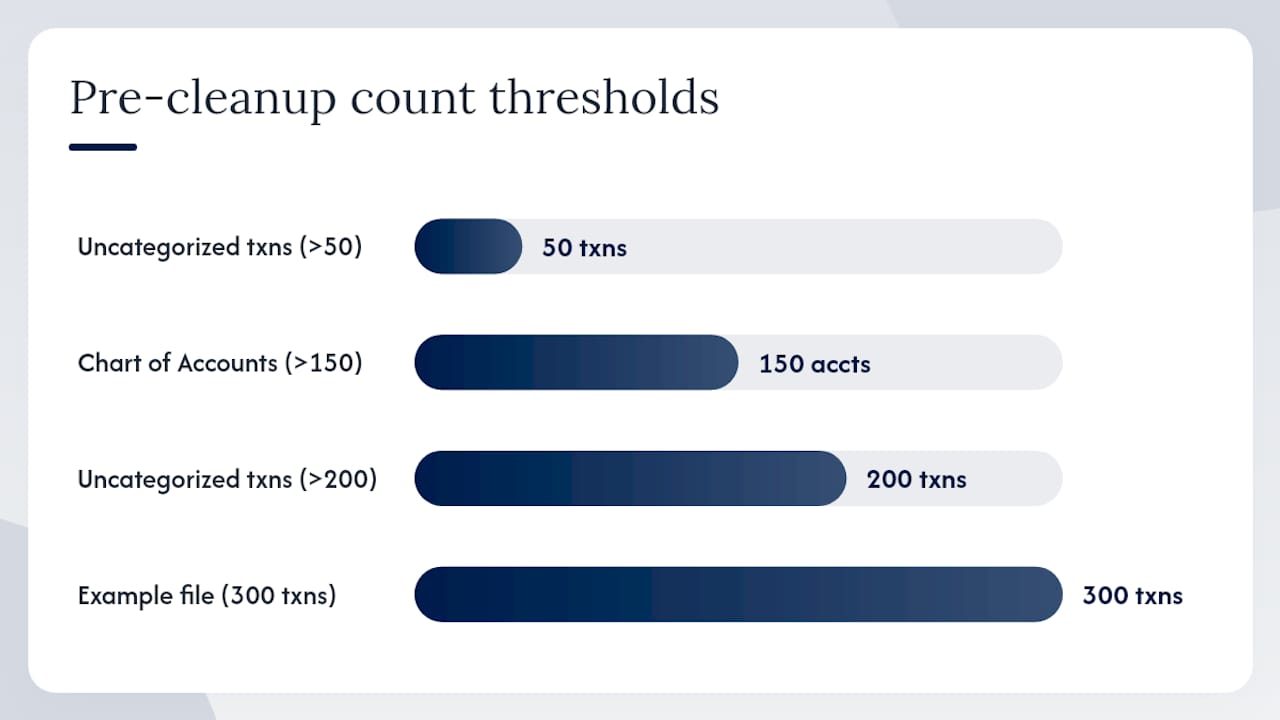
- Uncategorized transactions: Run a Transaction Detail by Account report filtered to “Uncategorized Income” and “Uncategorized Expense.” A count above 50 can indicate a problem; above 200 suggests a systematic categorization issue.
- Undeposited Funds balance: Pull the Balance Sheet. Any balance sitting in Undeposited Funds that is older than 30 days should be investigated carefully.
- COA account count: Open the Chart of Accounts. More than 150 accounts in a small service business usually means duplicates, typos, or accounts created by accident.
- Vendor duplicates: Run the Vendor Contact List. Scan for the same vendor spelled multiple ways (e.g., “Home Depot,” “Home Depot Inc,” “HD Supply”).
Prioritize by impact on financials and tax risk:
- Reconciliations and opening balances (directly affect every financial statement)
- Payroll liabilities (IRS exposure if misreported)
- Uncategorized transactions (distort profit and loss)
- COA duplicates and misclassified accounts
- AR/AP aging (cash flow and collections risk)
Convert your findings into a scoped checklist with a time estimate. A file with 6 unreconciled months, 300 uncategorized transactions, and payroll issues is a medium-to-heavy cleanup, not a quick Saturday project.
Pro Tip: Screenshot the diagnostic reports before you start. You will need them to show the client the “before” state, justify your scope, and protect yourself if questions arise later about what the file looked like at the start.
Gather supporting records and create a safe backup first
Never change a transaction without the documents to support the correction and a snapshot you can roll back to. This step protects you and the business owner.
Essential documents to collect:
- Bank and credit-card statements for every unreconciled month
- Payroll provider reports such as payroll summaries and tax liability reports
- Prior-year tax returns (to verify opening balances and retained earnings)
- Previous reconciliation reports (to confirm last-reconciled balances)
- Vendor invoices and bills for any large or disputed transactions
- Deposit slips and sales receipts for Undeposited Funds items
- Fixed-asset list or depreciation schedule
- Contracts and job records for project-based revenue (critical for HVAC, construction, and trucking businesses)
How to create a safe snapshot:
- In QuickBooks Online, go to Settings > Export Data and download a full export (transactions, lists, and reports).
- In QuickBooks Desktop, use File > Back Up Company > Create Local Backup and save to an external drive or cloud storage.
- Name the backup with the date and a “pre-cleanup” label (e.g., “CompanyName_PreCleanup_2026-01-15”).
- Store a second copy offsite or in cloud storage.
Document access checklist:
- Confirm you have admin or accountant-user access in QuickBooks
- Verify the client has removed any other active users who might edit transactions during cleanup
- Confirm the closing date and password are set (see BLUF above)
Pro Tip: For QuickBooks Desktop, run the Verify utility before you back up. If Verify finds errors, note them before you start. Creating a backup even of a damaged file is better than none, but understanding the file’s condition upfront is important.
Step-by-step bank and credit-card reconciliation process
Reconciliation is the backbone of accurate bookkeeping. Work from the oldest unreconciled month forward, never the most recent. Jumping to the current month first creates a false sense of progress and buries errors in prior periods.
How to handle missing opening balances:
If the opening balance for the first unreconciled month is wrong or blank, pull the bank statement for that month and manually enter the correct ending balance as the starting point. Do not force a reconciliation to balance by posting a journal entry to “make it work” — that hides the real discrepancy.
Numbered reconciliation sequence:
- Pull the bank or credit-card statement for the oldest unreconciled month.
- In QuickBooks, open the Reconcile screen and enter the statement’s ending balance and ending date.
- Match each transaction on the statement to a transaction in QuickBooks. Check off matches one by one.
- Investigate any difference before clicking Finish. A difference means a missing transaction, a duplicate, or a wrong amount.
- Correct the underlying transaction (not a journal entry) whenever possible.
- Document any adjustments made and why.
- Click Finish and save the reconciliation report as a PDF.
- Repeat for the next month.
Common reconciliation traps:
- Duplicate transactions: Bank feed imports can create duplicates when a manual entry already exists. Delete the duplicate, not the original.
- Missing bank feed items: Reconnect the bank feed and set the start date to the beginning of the oldest unreconciled month. Do not import further back than needed or you will create new duplicates.
- Journal entries used to force a balance: These mask real errors. Trace the source of the difference and fix the transaction instead.
How do you clean up the Chart of Accounts and fix transaction categories?
A bloated or disorganized COA is the root cause of most miscategorized transactions. Fix the COA before you reclassify anything at scale — otherwise you will categorize transactions into accounts you are about to merge or delete, and you will do the work twice. This is a core principle in a reliable cleanup sequence.
COA design rules for service businesses:
- Keep the COA under 100 accounts for most small to mid-size businesses to reduce complexity and errors.
- Separate revenue by service line (e.g., “HVAC Installation Revenue,” “HVAC Service Revenue”) to enable job-costing and profitability analysis by line.
- Separate taxable and non-taxable revenue into distinct accounts.
- Use clear expense buckets that map to tax categories (Cost of Goods Sold, Payroll, Vehicle Expenses, Subcontractors, etc.).
- Avoid creating new accounts for one-time transactions — use a memo note instead.
How to merge or inactivate duplicate accounts:
In QuickBooks Online, rename the duplicate account to match the account you want to keep, then confirm the merge when prompted. QuickBooks will move all transactions from the old account to the surviving one. In QuickBooks Desktop, use the same rename-to-merge method. Before merging, run a Transaction Detail report on the duplicate account so you know exactly what is moving.
Batch reclassification methods:
- In QBO, use the Reclassify Transactions tool (available in the Accountant Toolbox) to move groups of transactions from one account to another in bulk.
- For complex reclassifications, use a journal entry only when no underlying transaction can be corrected — and document the reason.
- Set up bank rules in QBO to auto-categorize recurring transactions going forward so the same vendors never land in “Uncategorized Expense” again.
Pro Tip: After merging accounts, run the Profit and Loss report and the Balance Sheet immediately. Spot-check five to ten transactions in the newly merged accounts to confirm the merge landed correctly before moving on.
Reviewing and cleaning accounts receivable and accounts payable
Old AR and AP balances are a direct cash-flow problem, not just a bookkeeping nuisance. An HVAC company carrying a significant amount in “open” invoices that were actually paid months ago is making pricing and cash-flow decisions on false data.
AR cleanup steps:
- Run the Accounts Receivable Aging Summary report. Filter for invoices older than 90 days.
- For each aged invoice, confirm whether payment was received. If yes, apply the payment to close the invoice.
- For invoices that are genuinely uncollectible, record a bad debt write-off using a “Bad Debt” expense account (not a credit memo to revenue).
- For disputed invoices, document the status and create a collections action item with a follow-up date.
- Confirm that all customer deposits and retainers are recorded as liabilities, not income, until the work is complete.
AP cleanup steps:
- Run the Accounts Payable Aging Summary. Flag bills older than 60 days.
- Match each open bill to a payment. If the payment was made but not applied, locate the check or bank transaction and apply it to the bill.
- Clear unapplied vendor credits and payments by applying them to open bills.
- Confirm vendor retainers and deposits are recorded correctly.
- Set aging thresholds appropriate to your business: 30 days for subcontractors, 60 days for material suppliers, 90+ days for flagged review.
Documentation to keep:
- Supporting invoices and bills for all large transactions
- Proof of payment (bank records, cleared checks, ACH confirmations)
- Written communications for disputed invoices or negotiated settlements
How do you resolve payroll entries and payroll liabilities in QuickBooks?
Payroll errors carry the highest risk of any cleanup category. Uncleared payroll liabilities on the Balance Sheet can mean missed tax deposits, and the IRS charges penalties and interest on those. Treat payroll cleanup as a priority, not an afterthought.
Payroll reconciliation steps:
- Pull the payroll summary report from your payroll provider (QuickBooks Payroll, Gusto, ADP, or similar) for each unreconciled period.
- Tie gross wages, employer taxes, and net pay from the payroll report to the corresponding bank transactions.
- In QuickBooks, run the Payroll Liability Balances report. Every liability line should match a scheduled tax payment.
- Confirm that each payroll tax deposit (federal 941, state withholding, FUTA, SUTA) is recorded in QuickBooks and matches the actual bank withdrawal.
- Document all corrections with a note explaining what was wrong and how it was fixed.
Common payroll red flags:
- Payroll liability balances that have not cleared in 30+ days
- Payroll tax payments recorded as expenses instead of liability payments
- Mismatched pay dates between the payroll provider and QuickBooks
- Missing payroll tax filings (Form 941, state returns) for any quarter
When to escalate:
If payroll liabilities have been sitting uncleared for multiple quarters, or if tax filings are missing, stop and involve a CPA or payroll specialist before making corrections. Incorrect adjustments to payroll liabilities can misrepresent what was reported to the IRS, creating a larger problem than the one you started with.
Pro Tip: Never zero out a payroll liability balance with a journal entry unless a CPA has confirmed the liability was actually paid and just recorded incorrectly. A journal entry that hides an unpaid payroll tax liability is a compliance time bomb.
Inventory adjustments and fixed-asset tracking
For service businesses that carry parts inventory (HVAC, plumbing, electrical contractors), inventory discrepancies directly distort job costs and gross margin. A physical count that does not match QuickBooks means your job-costing data is wrong, and your pricing may be too.
Inventory adjustment checklist:
- Conduct a physical count of all inventory items.
- Run the Inventory Valuation Summary in QuickBooks and compare it to the physical count.
- For each discrepancy, post an inventory adjustment in QuickBooks with a memo explaining the reason (shrinkage, theft, damage, prior recording error).
- Attach the physical count sheet as a document to the adjustment entry for audit trail purposes.
- Review the Cost of Goods Sold account to confirm inventory adjustments landed in the right period.
Fixed-asset register guidance:
- Record every asset purchase above your capitalization threshold (typically $2,500 for most small businesses, per IRS safe harbor rules) as a fixed asset, not an expense.
- Assign a depreciation method (straight-line or MACRS) and useful life to each asset.
- For assets purchased in prior years that were expensed incorrectly, work with your CPA to determine whether a correction is needed before filing.
- Record disposals and retirements promptly — a truck sold two years ago that still sits on the Balance Sheet inflates assets and distorts net worth.
Pro Tip: If your inventory tracking in QuickBooks has become unreliable, consider moving to a dedicated job-costing or inventory app (ServiceTitan, Housecall Pro, or a similar field-service platform) and using QuickBooks as the financial ledger only. Maintaining two systems is less painful than making pricing decisions on inventory data you cannot trust.
Which QuickBooks tools and diagnostics speed up cleanup safely?
QuickBooks includes several built-in utilities that can diagnose and repair file issues. Use them in the right order, and always with a backup in hand.
QuickBooks Desktop utilities:
- Verify: Scans the company file for data integrity issues. Run it first, before any cleanup work. Verify identifies issues; Rebuild attempts to repair them — a backup is required before running Rebuild, and Verify should be re-run after each Rebuild to confirm the repair worked.
- Rebuild: Attempts to fix the errors Verify found. Run only after creating a fresh backup. Some errors require multiple Rebuild passes.
- QuickBooks File Doctor: A standalone tool for diagnosing network and file-level issues. If Verify, Rebuild, and File Doctor cannot repair the file, restore from the most recent clean backup or contact QuickBooks support.
QuickBooks Online tools:
- Audit Log: Found under Settings > Audit Log. Shows every transaction change, deletion, and user action. Use it to identify who made changes and when — critical for understanding how the mess was created.
- Reclassify Transactions tool: Available in the Accountant Toolbox. Moves groups of transactions between accounts in bulk without editing each one individually.
- Bank Rules: Automate categorization for recurring vendors and transaction types. Set these up after the COA is clean so rules point to the correct accounts.
Safety rules for tools and integrations:
- Always back up before running any Desktop utility or bulk operation.
- Test bulk changes on a small batch before applying to the full dataset.
- Document every tool-assisted change (what was changed, when, and why).
- For third-party apps that connect to QBO (receipt capture tools, payroll integrations, inventory apps), audit the sync settings after cleanup to prevent re-importing old or duplicate data.
Regular file housekeeping preserves QuickBooks performance and can prevent premature migration to a different accounting system. Many performance problems that owners attribute to “outgrowing QuickBooks” are actually maintenance issues.
How long does a QuickBooks cleanup take, and what does it cost?
The honest answer depends on how many months are unreconciled, whether payroll is involved, and how badly the COA has been mismanaged. Here are realistic bands based on typical small-business cleanup engagements.
| Scope | Time Estimate | Key Drivers | Typical Cost Range |
|---|---|---|---|
| Light cleanup | 1–8 hours | 1–3 months unreconciled, minor COA issues, no payroll problems | $300 |
| Medium cleanup | 8–25 hours | 4–12 months unreconciled, COA rebuild needed, some payroll issues | $900 |
| Heavy cleanup | 25+ hours | 12+ months unreconciled, payroll liabilities, inventory issues, missing records | $3,000 |
What drives the price up:
- Months unreconciled (each month adds reconciliation time)
- Payroll liability corrections (require CPA coordination)
- Inventory complexity (physical counts, COGS corrections)
- Missing source documents (requires reconstruction)
- Multiple bank accounts and credit cards
- Prior-year tax return corrections needed
DIY vs. hiring a professional:
If your file has fewer than 3 months unreconciled, no payroll issues, and a manageable transaction volume, a capable bookkeeper or owner can handle it in-house. Use Intuit’s free cleanup checklist template as a starting scope document, and insist on a signed engagement letter that defines deliverables, timeline, and what records the client must supply.
For anything involving uncleared payroll liabilities, more than 12 months unreconciled, or an impending tax filing, the cost of a professional cleanup is almost always less than the cost of filing incorrect returns and paying IRS penalties.
A practical monthly close checklist to keep QuickBooks clean
The goal of a cleanup is not just clean books today. It is a system that stays clean. Proper data maintenance preserves file performance and prevents the slow drift that turns a manageable file into a 25-hour cleanup project.
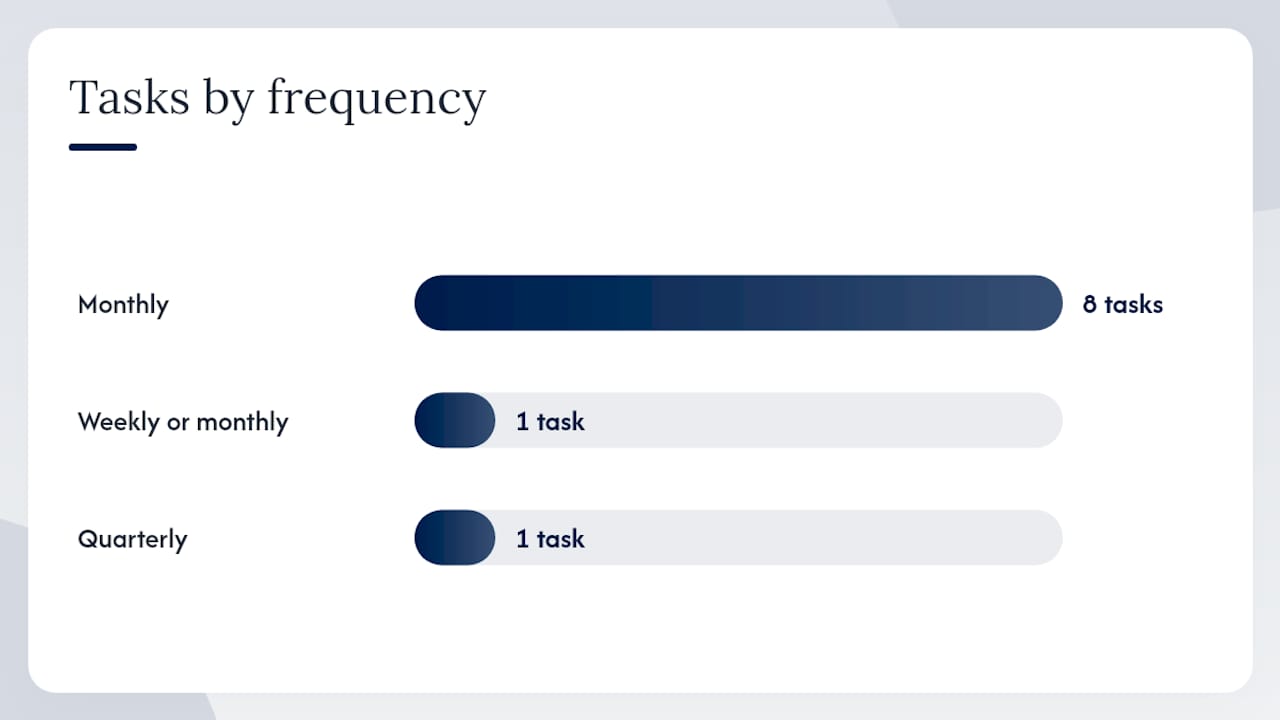
| Monthly Task | Owner | Frequency |
|---|---|---|
| Reconcile all bank and credit-card accounts | Bookkeeper | Monthly, within 10 days of statement close |
| Clear Undeposited Funds | Bookkeeper | Monthly |
| Review and categorize uncategorized transactions | Bookkeeper | Weekly or monthly |
| Review AR aging and follow up on 60+ day invoices | Owner or bookkeeper | Monthly |
| Review AP aging and confirm bills are paid | Owner or bookkeeper | Monthly |
| Check payroll liability balances | Bookkeeper or payroll admin | Monthly |
| Merge new vendor duplicates | Bookkeeper | Monthly |
| Review bank rules for accuracy | Bookkeeper | Quarterly |
| Run Profit and Loss and Balance Sheet | Owner | Monthly |
| Set closing date for prior month | Bookkeeper | Monthly |
Automation and controls that prevent regression:
- Set up bank rules for your top 20 recurring vendors. This alone eliminates the majority of uncategorized transactions for most service businesses.
- Use recurring transactions for fixed monthly expenses (rent, insurance, software subscriptions).
- Require approval controls in QBO for any transaction above a defined threshold.
- Lock prior periods with a closing date and password immediately after each month is reconciled.
A confidence-tier approach works for ongoing maintenance too: batch-process high-confidence auto-categorized transactions quickly, flag low-confidence items for manual review, and escalate anything that requires a CPA’s judgment.
Most common cleanup mistakes and how to avoid them
These are the errors that cause rework, distort financial statements, and sometimes create IRS exposure. Knowing them in advance saves hours.
Do-not-do list:
- Forcing reconciliation differences with journal entries. A journal entry that makes the reconciliation balance does not fix the underlying problem. It hides it. Trace the difference to its source transaction.
- Ignoring opening balances. An incorrect opening balance corrupts every reconciliation that follows. Fix it first, even if it means going back to the prior-year tax return to verify retained earnings.
- Deleting vendor history. Deleting a vendor in QuickBooks removes transaction history. Inactivate vendors instead of deleting them.
- Skipping backups before bulk changes. One wrong bulk reclassification can affect hundreds of transactions. There is no undo button for some operations.
- Merging accounts without reviewing what is in them. Always run a Transaction Detail report on an account before merging it into another.
Quick fix vs. proper fix:
A journal entry is appropriate when there is genuinely no underlying transaction to correct (e.g., a depreciation entry or a bank fee that was never recorded). It is not appropriate as a shortcut to balance a reconciliation or zero out a liability. When a journal entry is the only option, document the reason in the memo field and attach supporting documentation.
Pro Tip: Build a simple change log during cleanup: a spreadsheet that records the date, the account affected, what was changed, and why. This protects you if the client questions a balance later and gives the CPA a clear picture at tax time.
When should you hire a QuickBooks cleanup professional?
Some cleanup projects are genuinely beyond what a business owner or general bookkeeper should attempt alone. Knowing when to stop and hire help saves money, not just time.
Clear signals to hire a professional:
- Payroll liabilities have been sitting uncleared for more than one quarter
- More than 12 months are unreconciled
- A tax filing deadline is approaching and the books are not ready
- Recurring AR/AP mismatches that have not been resolved after multiple attempts
- Inventory balances that do not match physical counts by a material amount
- The business has changed ownership, structure, or accounting methods mid-year
What a professional cleanup engagement should deliver:
- A scoped diagnostic report showing the file’s condition at the start
- A prioritized fix list with estimated hours per task
- Reconciled bank and credit-card accounts for every open period
- A rebuilt or cleaned COA with naming conventions documented
- Corrected AR and AP aging reports
- Payroll liability reconciliation (with CPA coordination if needed)
- A final snapshot of the cleaned file and a handoff summary
- Optional: an ongoing monthly retainer to maintain the file going forward
Pro Tip: Ask any cleanup professional for a fixed-fee quote, not an hourly estimate. A fixed fee forces the provider to scope the work accurately upfront and protects you from open-ended billing. Insist on a written engagement letter that lists deliverables, timeline, and what records you must supply before work begins.
Service businesses in HVAC, plumbing, construction, and trucking often discover during a cleanup that their job-costing data was unreliable for months or years. Restoring that data is not just a compliance win. It directly affects pricing decisions, contract profitability, and cash-flow forecasting. For a deeper look at catch-up bookkeeping workflows, the process mirrors a cleanup engagement but focuses on bringing a file current from a defined start date.
Why cleanup is a strategic decision, not just a compliance task
Most business owners think of a QuickBooks cleanup as something you do before tax season to avoid embarrassment with your CPA. That framing undersells what clean books actually do for a service business.
When an HVAC company or a general contractor has accurate, reconciled financials, they can see which jobs are profitable and which are not. They can spot a cash-flow gap before it becomes a crisis. They can price new work based on actual labor and material costs rather than gut instinct. Messy books do not just create tax risk. They hide the information you need to run the business well.
The cleanup itself is often the moment owners realize how much money they have been leaving on the table. A contractor who discovers that three service lines have been lumped into one revenue account for two years has been flying blind on profitability. Fixing that is not a bookkeeping task. It is a business decision.
The firms that treat cleanup as a one-time compliance fix tend to end up back in the same place 18 months later. The ones that use it as a reset point, and then build monthly controls to maintain the file, are the ones that actually gain financial clarity. That clarity is what makes better pricing, better hiring decisions, and better cash-flow management possible.
Truemeasureaccounting’s fixed-fee QuickBooks cleanup service
If your QuickBooks file has months of unreconciled accounts, payroll liabilities that have not cleared, or a COA that no longer reflects how your business actually operates, a fixed-fee cleanup engagement gives you a defined scope, a clear deliverable list, and a clean file at the end.
Truemeasureaccounting works with owner-operated service businesses across the United States, including HVAC companies, plumbing and electrical contractors, general contractors, trucking operations, and real estate investors. Every cleanup starts with a scoped diagnostic so you know exactly what needs to be fixed and what it will cost before any work begins. The result is not just clean reports. It is restored job-costing visibility, accurate cash-flow data, and financial statements you can actually use to make decisions.
Owners who need more than a one-time fix can move into a monthly bookkeeping services retainer that keeps the file maintained, reconciled, and ready for tax season every month. To get a scoped diagnostic and a fixed-fee quote for your cleanup, contact Truemeasureaccounting today.
Sources
- 12 steps for bookkeeping clean up + free checklist
- How to perform a comprehensive QuickBooks cleanup (+ free checklist template)
- How to clean up QuickBooks Online: The 12-step process I used on 200+ client files
- Maximize QuickBooks performance with proper data maintenance – Cooper Mann Consulting