
Undeposited Funds in QuickBooks Online is a temporary holding account for payments you’ve received but haven’t yet recorded as a bank deposit. Think of it as a lockbox: money sits there until you group it into a deposit that matches your actual bank statement. If you see a balance in this account, here’s what to do right now:
- Run the Undeposited Funds detail report to see every item sitting in the account.
- Match each receipt to your physical deposit slip or bank statement line.
- If a receipt matches a real deposit, record the Bank Deposit in QuickBooks. If it doesn’t match anything, flag it for investigation before touching it.
Pro Tip: Any item older than a week or two is a red flag. A growing balance with entries from last month almost always means either a missed deposit entry or a duplicate payment record.
Key Takeaways
Clean Undeposited Funds records require a consistent two-step workflow: record every payment to the holding account, then make a Bank Deposit that matches your bank statement exactly.
| Point | Details |
|---|---|
| Run the report first | Use Chart of Accounts → Undeposited Funds → Run Report; default view covers 90 days. |
| Match receipts to bank lines | Create one Bank Deposit per bank statement line; never invent a deposit that doesn’t match. |
| Flag items older than 14 days | Stale entries signal a missed deposit step, a duplicate, or a voided transaction. |
| Prevent with one workflow | Pick either Undeposited Funds or direct-to-bank and enforce it consistently across all users. |
| Truemeasureaccounting cleans it up | QuickBooks cleanup and monthly bookkeeping services restore accuracy for service businesses with $250K–$5M in revenue. |
This article is general information, not a substitute for advice from a qualified financial advisor. Consult a qualified financial professional about your own circumstances before acting on anything here.
Table of Contents
- What the Undeposited Funds account is and why QuickBooks uses it
- When you should — and shouldn’t — use Undeposited Funds
- How Undeposited Funds flows through QuickBooks Online
- How to put payments into Undeposited Funds correctly
- How to make a Bank Deposit to clear Undeposited Funds
- Run the Undeposited Funds report and clean up stale balances
- How to avoid unexpected Undeposited Funds using controls and automation
- Practitioner best practices for small service businesses
- Accurate books start with clean deposits
- Sources
What the Undeposited Funds account is and why QuickBooks uses it
QuickBooks describes Undeposited Funds as a temporary asset account that holds customer payments until you’re ready to record a bank deposit. The account exists to solve a specific bookkeeping problem: your bank doesn’t receive five separate $100 payments from five customers. It receives one $500 deposit. Without a holding account, those five receipts would never reconcile cleanly to that single bank line.
The double-entry mechanics are straightforward. When you record a customer payment, QuickBooks debits Undeposited Funds and credits Accounts Receivable (or income, for a Sales Receipt). When you later make a Bank Deposit, QuickBooks credits Undeposited Funds and debits your bank account. The account nets to zero once every receipt is deposited.
QuickBooks Payments changes this. When a customer pays online through QuickBooks Payments, the deposit records automatically and bypasses Undeposited Funds entirely. For businesses that collect checks, cash, or payments outside the platform, the manual two-step process remains necessary.
A balance in Undeposited Funds is not income sitting in a bank account. It shows up as a current asset on your balance sheet, which can make your financial reports look healthier than your cash position actually is.
When you should — and shouldn’t — use Undeposited Funds
The account is useful in specific situations and counterproductive in others. Here’s a quick decision guide:
Use Undeposited Funds when:
- You’re depositing multiple checks or cash payments as one lump sum at the bank.
- Your bank account isn’t connected to a live bank feed.
- You need to apply payments to specific invoices before grouping them into a deposit.
Skip Undeposited Funds when:
- QuickBooks Payments processes the transaction automatically.
- Your bank feed imports each payment as its own individual line.
- Each customer payment posts one-to-one with a bank statement line.
| Situation | Use Undeposited Funds? |
|---|---|
| Batch of checks deposited together | Yes |
| Single check deposited alone, bank feed connected | No |
| QuickBooks Payments online payment | No |
| Cash payments batched at end of day | Yes |
| Bank feed already imported the deposit | No |
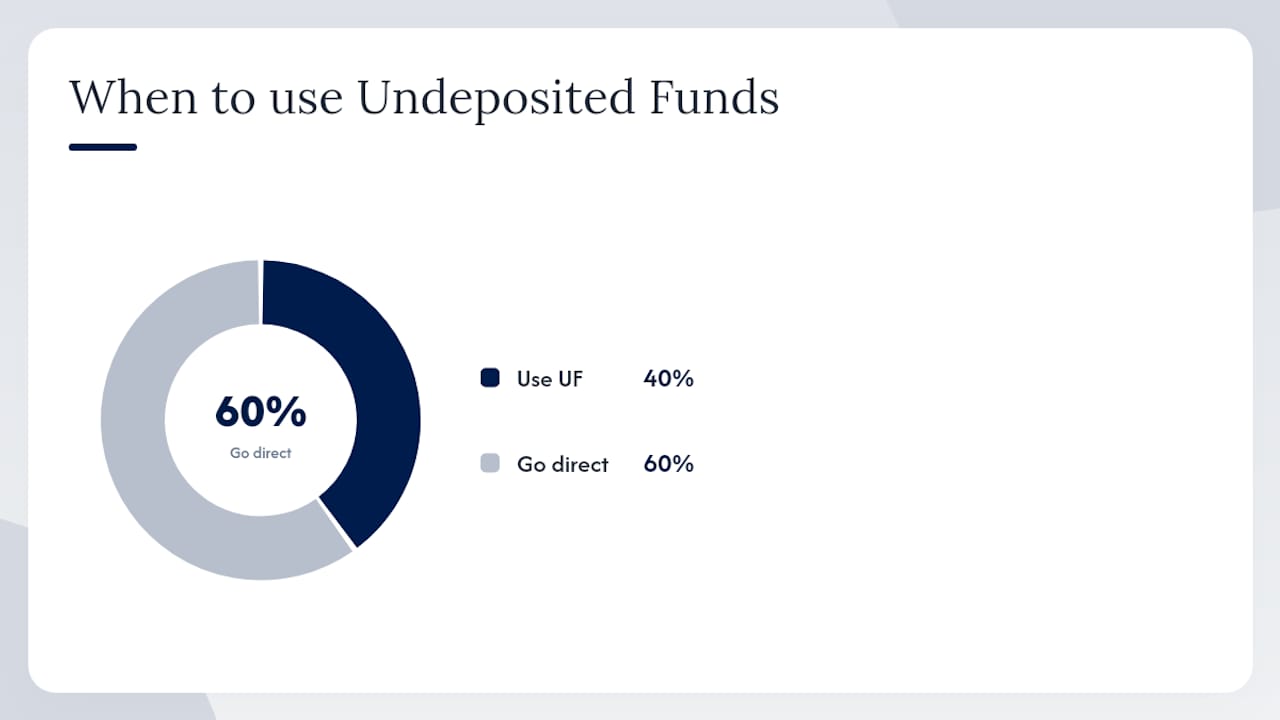
The decision rule: if your bank statement shows one line for multiple payments, you need Undeposited Funds to group them. If the bank statement shows individual lines matching individual payments, go direct to the bank account. Mixing both approaches in the same company file is where most problems start.
How Undeposited Funds flows through QuickBooks Online
The workflow has two steps, and skipping either one creates a stuck balance. Here’s the full path:
- Go to + New → Receive Payment (for an existing invoice) or + New → Sales Receipt (for a point-of-sale payment).
- Select the customer and apply the payment to the correct invoice or service.
- In the Deposit to field, choose Undeposited Funds. Save the transaction.
- Go to + New → Bank Deposit. QuickBooks displays all payments currently sitting in Undeposited Funds.
- Select the payments that match your bank deposit slip, confirm the total, and save.
QuickBooks Payments short-circuits steps 1–3. The payment records directly to your bank account without passing through Undeposited Funds, which is why businesses using QuickBooks Payments rarely see a balance in this account unless something went wrong manually.
How to put payments into Undeposited Funds correctly
Getting payments into the account correctly is what prevents stuck balances later. Follow these steps exactly:
- Navigate to + New → Receive Payment from the left menu.
- Select the customer name from the dropdown. QuickBooks will display any open invoices.
- Check the invoice(s) the payment applies to.
- Enter the payment amount, payment method, and reference number (check number, for example).
- In the Deposit to field, confirm it reads Undeposited Funds. If it shows a bank account instead, change it.
- Save and close.
For a Sales Receipt (no prior invoice), the path is + New → Sales Receipt. The same Deposit to field appears at the top of the form.
Pro Tip: Check your default Deposit to setting under Account and Settings → Advanced → Accounting. If it’s set to a bank account instead of Undeposited Funds, every payment you record goes directly to the bank account and bypasses the grouping step entirely. In newer QuickBooks Online layouts, Undeposited Funds may appear as “Payments to deposit” — same account, different label.
QuickBooks Online guidance confirms that the account is needed specifically when you’re depositing more than one payment at a time or when your bank account isn’t connected.
How to make a Bank Deposit to clear Undeposited Funds
This is the step most owners skip, and it’s why balances pile up. Every receipt in Undeposited Funds must be matched to a real bank deposit entry.
- Go to + New → Bank Deposit.
- Select the correct bank account from the Account dropdown.
- Set the Date to match your actual bank deposit slip date, not today’s date.
- In the list of payments, check every receipt that was part of that deposit.
- Confirm the total at the bottom matches your deposit slip exactly.
- If the bank charged a fee or you kept cash back, add those as separate lines in the Add funds to this deposit section.
- Save the deposit.
Before saving, run through this checklist:
- Deposit total matches the bank statement line exactly.
- Date matches the deposit slip, not the payment date.
- Bank fees and cash back are recorded as separate lines.
- No payments are checked that belong to a different deposit.
One practical rule worth following: create one Bank Deposit in QuickBooks for every line on your bank statement. RemitClear’s cleanup guidance warns specifically against sweeping multiple receipts into a single deposit that doesn’t correspond to a real bank line. That mismatch creates reconciling differences that compound every month.
If a payment shows a blue date link in the Bank Deposit window, it’s already linked to a prior deposit. To reuse it, open the original deposit, uncheck that payment, save, then return to your new deposit and check it there.
Run the Undeposited Funds report and clean up stale balances
The fastest way to see what’s stuck is to run the dedicated report. Go to All Apps → Accounting → Chart of Accounts, find Undeposited Funds, and click Run Report. The default report period is 90 days, but you can change the date range to see older items.
Common causes of stuck balances:
- Payments recorded to Undeposited Funds, but the Bank Deposit was entered directly to the bank account instead (creating a duplicate).
- Bank feed imported a deposit that was already recorded manually.
- A Sales Receipt was deleted after the Bank Deposit was already made.
- An invoice was voided after the payment was applied.
- Payments were never deposited because the bookkeeper didn’t complete step two.
Three safe cleanup strategies:
| Strategy | When to use it | Audit-trail impact |
|---|---|---|
| Relink receipt to original deposit | Payment exists, deposit exists, they’re just not connected | Minimal — corrects the link without changing amounts |
| Year-end clearing journal entry | Closed period, can’t edit transactions | Creates an audit trail entry; document the reason |
| Dummy bank deposit + write-off | Last resort for unidentifiable items | Highest risk; requires documentation and owner approval |
Beancount outlines these three methods in detail, including the ledger mechanics behind each. Never invent a deposit that doesn’t correspond to a real bank line. That approach clears the QuickBooks balance but creates a reconciling difference that’s harder to fix than the original problem.
Pro Tip: Keep a cleanup log. When you investigate and resolve a stale item, document the date, the original transaction, what caused it, and how you fixed it. That log protects you during a tax review and speeds up future cleanups.
How to avoid unexpected Undeposited Funds using controls and automation
Cleanup is reactive. Prevention is where the real time savings come from.
- Pick one workflow and enforce it. Either all payments go through Undeposited Funds before being deposited, or all payments go directly to the bank account. Mixing both in the same file is the most common source of stuck balances. Train every person who touches QuickBooks on which workflow your business uses.
- Connect your bank feed. A live bank feed lets you match imported transactions instead of creating duplicate entries. This alone eliminates most accidental duplicates.
- Use QuickBooks Payments where feasible. Online payments processed through QuickBooks Payments record automatically, with no manual deposit step required.
- Set the default Deposit to account. Under Account and Settings → Advanced, set the default to match your chosen workflow. If you use Undeposited Funds, set it there. If you go direct to bank, set it to the correct account.
- Reconcile weekly, not monthly. A weekly review of the Undeposited Funds balance catches stuck items before they age past 30 days. Assign one person to run the report and post deposits every week.
- Train the person who handles bank-feed categorization. Operational fixes, like teaching your bookkeeper to match bank-feed lines rather than create new entries, reduce recurring stuck items more durably than any periodic cleanup. This is a point QuickBooks’ own guidance on missing payments reinforces.
Common mistakes that create recurring problems include using Undeposited Funds as an opening balance account, treating it like a bank account, or entering deposits directly to the bank while receipts remain in the holding account. QuickBooks Community threads document all three as frequent sources of confusion.
Practitioner best practices for small service businesses
For HVAC companies, plumbing contractors, electrical firms, trucking operators, and real estate investors, Undeposited Funds discipline connects directly to cash flow clarity and job costing accuracy. A bloated Undeposited Funds balance overstates your current assets and makes your cash flow management decisions unreliable.
Here’s a practical reconciliation schedule:
- Daily: Review any payments received and confirm they’re recorded to Undeposited Funds with the correct customer and invoice.
- Weekly: Run the Undeposited Funds report. Post Bank Deposits for all receipts that match your bank deposit slips. Flag anything older than 7 days.
- Monthly (before close): Confirm the Undeposited Funds balance is zero or contains only items from the current period. Investigate and document any exceptions before closing the month.
For check-heavy businesses like trucking companies or general contractors, it is generally recommended to target a zero balance within about a week. A check sitting in Undeposited Funds for three weeks usually means someone forgot to make the bank deposit entry, not that the money is missing.
Operational controls that protect profitability:
- Assign one person as the deposit owner. Split responsibility is where items fall through.
- Link your Undeposited Funds review to your job costing review. If a payment isn’t deposited, it may also not be applied to the right job, which distorts your profitability by customer or project.
- Use the financial visibility checklist for home service businesses to build deposit routines into your weekly close process.
- For trucking and transportation businesses, common bookkeeping mistakes in check-heavy operations often trace back to missed deposit entries.
When Undeposited Funds is clean, your Accounts Receivable aging, your cash position, and your job-level profitability reports all become more trustworthy. That’s the real payoff.
A note from TrueMeasure Accounting
Undeposited Funds is one of the first things we look at when we take on a new QuickBooks cleanup. A stale balance almost always signals a broader pattern: payments misapplied, deposits duplicated, or a month-end close that never fully happened. Fixing it restores confidence in your financial reports and gives you an accurate picture of your actual cash position. If your Undeposited Funds balance has been growing for months and you’re not sure why, reach out to us for a QuickBooks cleanup review.
Accurate books start with clean deposits
Owner-operated service businesses that carry a persistent Undeposited Funds balance are working with financial reports they can’t fully trust. Truemeasureaccounting specializes in exactly this situation.

For HVAC companies, plumbing contractors, electrical firms, trucking operators, construction businesses, and real estate investors generating $250,000 to $5 million annually, Truemeasureaccounting provides QuickBooks cleanup projects, monthly bookkeeping with bank-deposit controls built in, and fractional CFO support that connects your deposit routines to job costing and cash flow forecasting. The difference from a standard bookkeeping service is operational context: we understand how your business actually collects money, and we build your QuickBooks workflows around that reality.
If your Undeposited Funds account has a balance you can’t explain, or if your books haven’t been fully reconciled in months, request a cleanup estimate and we’ll show you exactly what it takes to get your records clean and current.
Sources
- Managing your Undeposited Funds account
- Beancount
- How to Clear Undeposited Funds in QuickBooks Online | RemitClear